Scrolling Capture
Enable Screen Recording
Simply scroll through the content, and Picsew will automatically turn it into one complete scrollshot—no need to capture and stitch screenshots one by one. Before using Scrolling Capture, follow the steps below to add the system’s Screen Recording control.
-
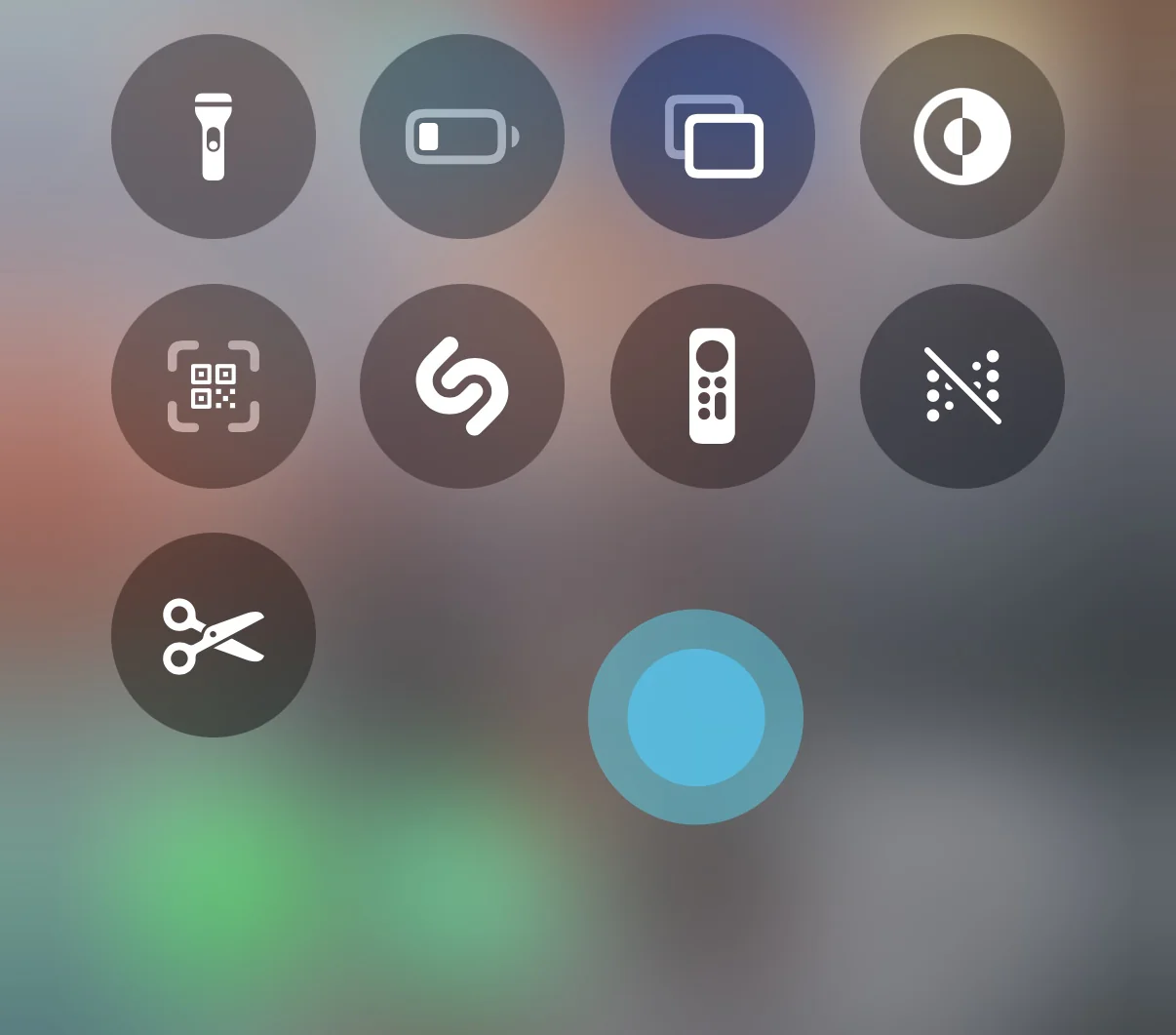
Long press any blank area in Control Center
-
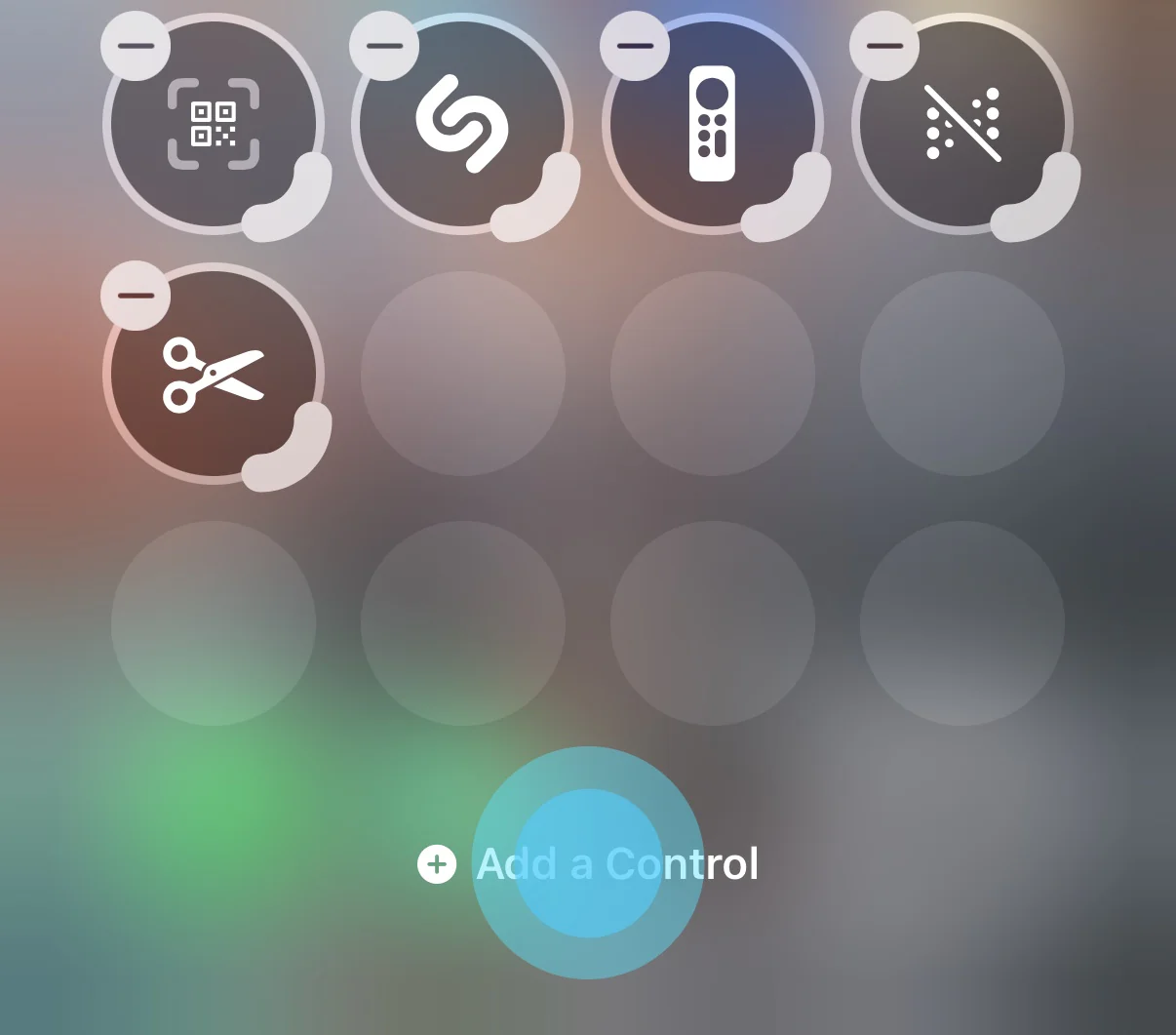
Tap Add a Control
-
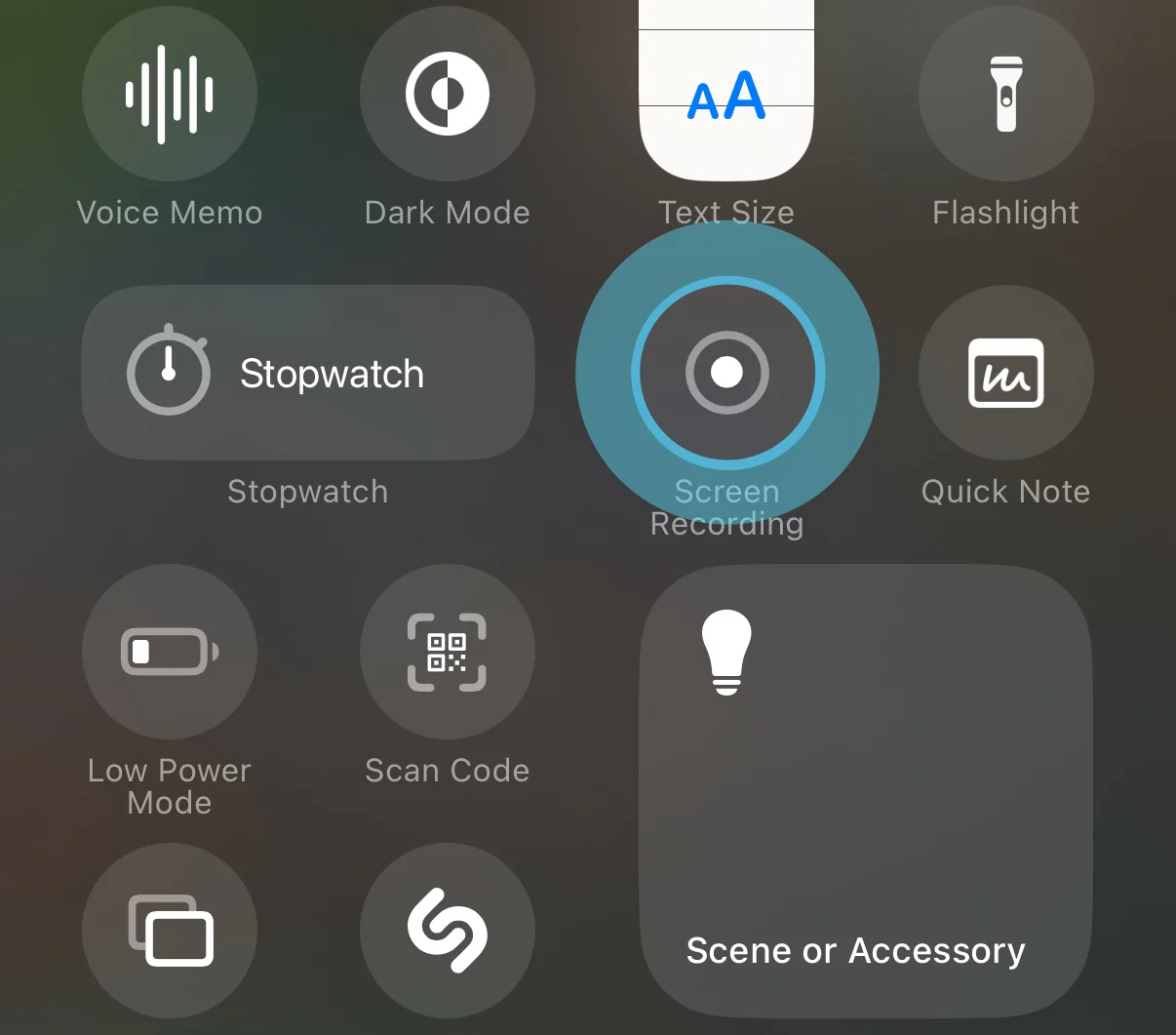
Choose Screen Recording
-
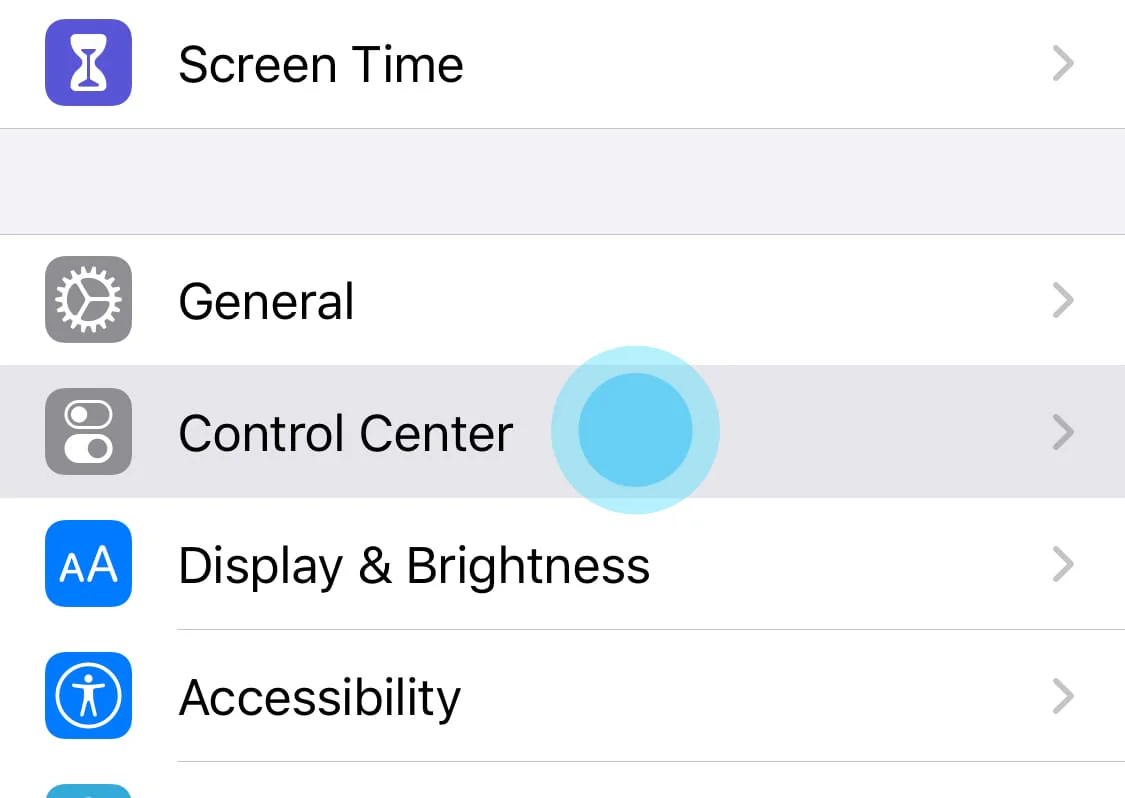
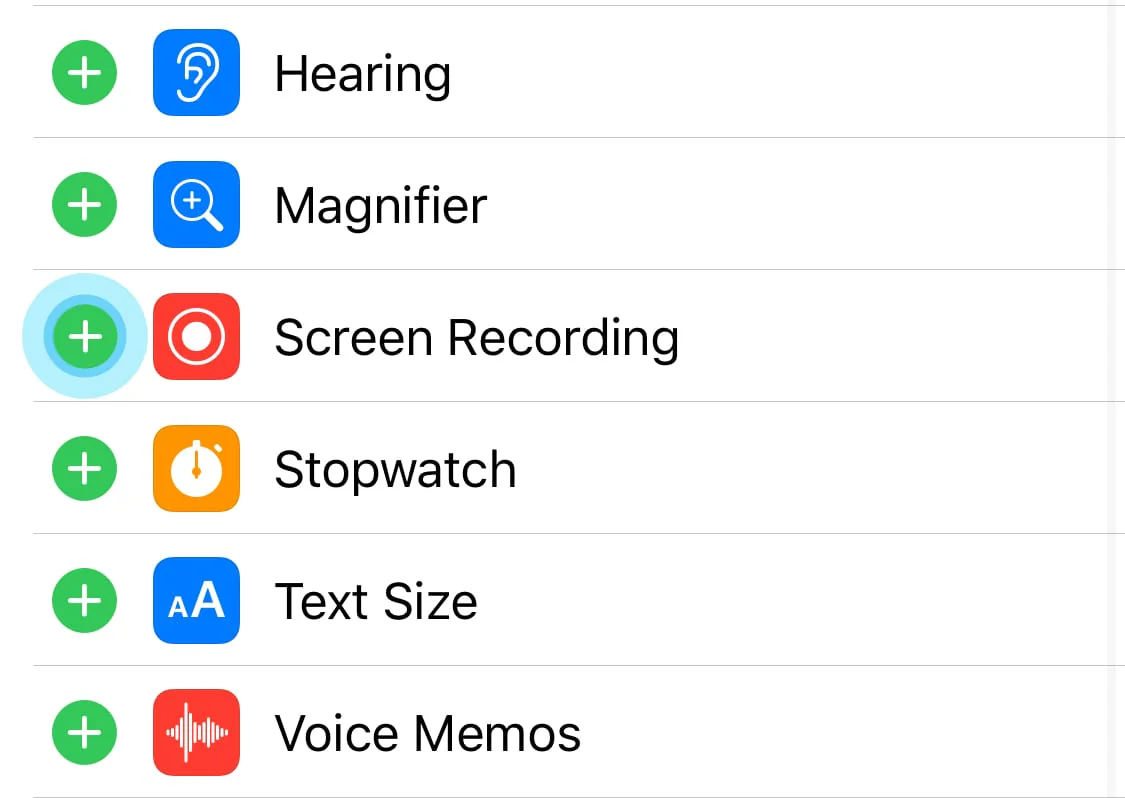
Open the system's Settings App and tap Control Center.
-
Enable Screen Recording.
Use Scrolling Capture
-
Open the app you want to take a scrollshot in advance and locate the beginning of the content. Picsew supports scrolling from top to bottom, or scrolling from bottom to top, and even scrolling back and forth, so the initial position can be at the top or bottom.
-
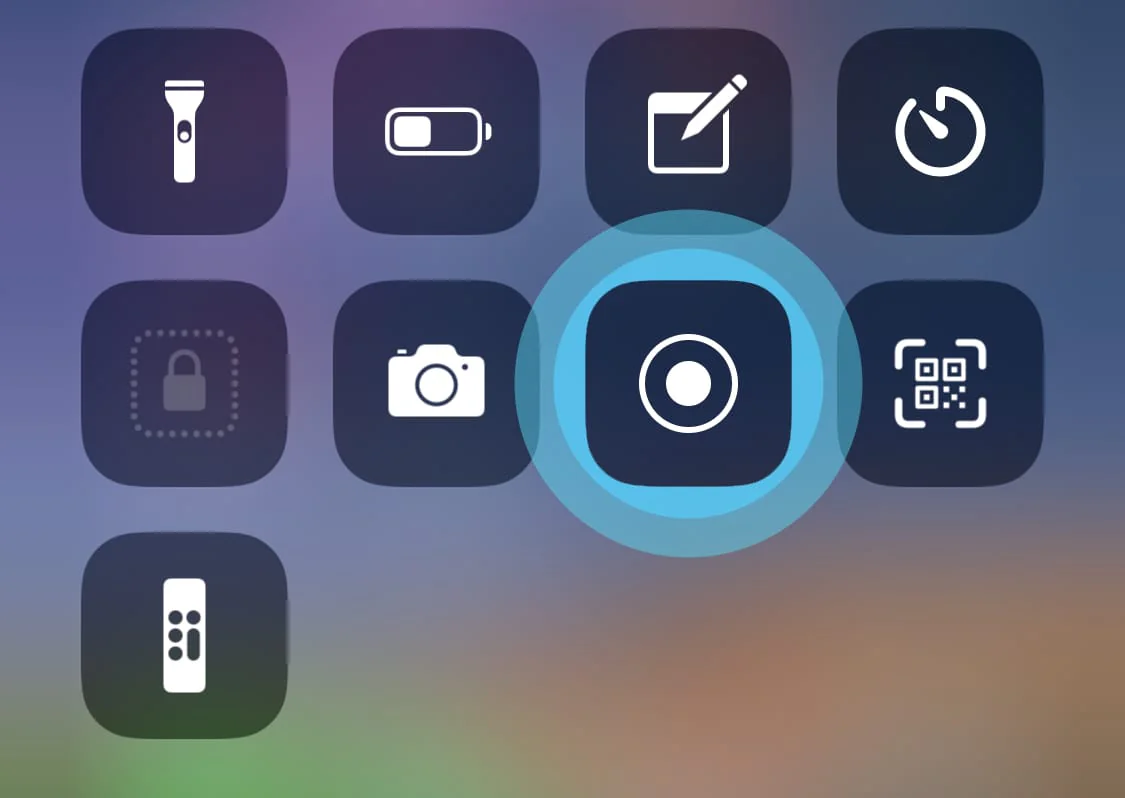
Open the control center and long press (or hard press) the Screen Recording button.
-
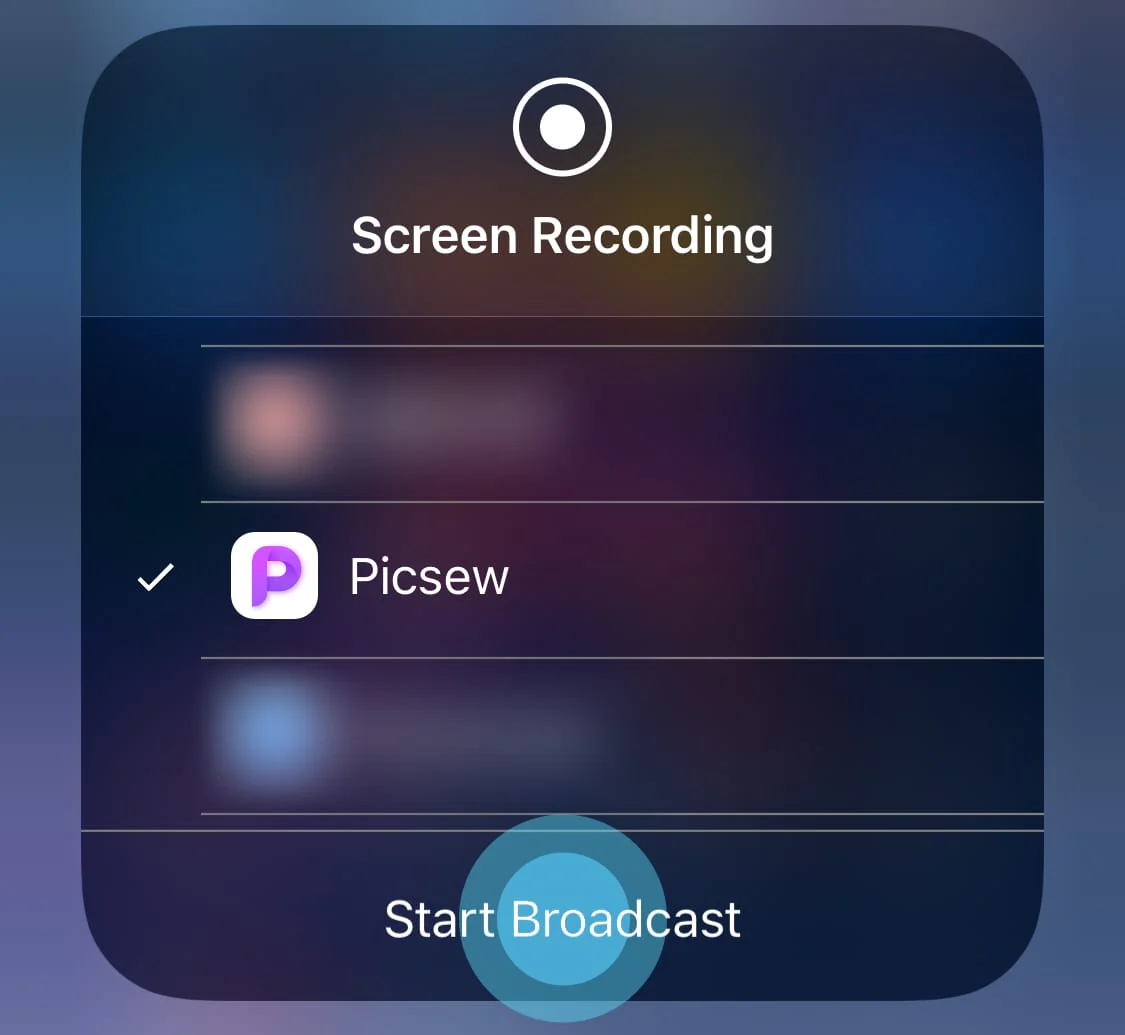
In the broadcast list, select Picsew, then tap Start Sharing or Start Broadcast.
Repeat steps 2-3 each time you want to use Scrolling Capture. If you directly tap the Screen Recording button, the system’s screen recording function will be used.
Tip
If Picsew is not found, remove the Screen Recording control from Control Center and add it again.
If Picsew appears but cannot be selected, start and stop a standard system Screen Recording once.
If it is still unavailable, restart your device and try again.
-
A 3-second countdown will begin, although it may not be visible on newer system versions. Immediately return to the app where you want to take a scrollshot instead of waiting for the countdown to finish. The
 will then appear at the top of the screen. Don't begin scrolling the screen content until it appears.
 -
Keep scrolling the screen content. You can finish Scrolling Capture in any of these ways:
- Auto End is on by default. When you reach the end, stop scrolling, lift your finger, and keep the screen still. Picsew will end Scrolling Capture after the selected wait time. To change the wait time, tap the time under Auto End in Picsew settings.
- Tap the at the top of the screen to end Scrolling Capture.
- In full screen, the system may hide the , but Auto End will still work. If you have turned off Auto End and cannot tap the icon, turn on Shake to End, then shake your device when you reach the end.
After Scrolling Capture ends, open Picsew to view the complete scrollshot.
Tip
Do not scroll too quickly. Consecutive images need an overlapping area, or Scrolling Capture may fail.
Tip
If Screen Recording exits unexpectedly, or the Scrolling Capture result does not appear after you return to the app, try restarting the device.
-
To receive a notification when Scrolling Capture finishes, turn on Notify When Finished in Picsew settings. If Allow Notifications appears instead, tap it and allow notifications first.
Picsew sends this notification only when you tap the
at the top of the screen to end Scrolling Capture. No notification is sent when Auto End or Shake to End ends Scrolling Capture.
Convert Screen Recording Video
Picsew will detect the most recent screen recording video and convert it to a scrollshot. If Scrolling Capture does not produce a scrollshot, try using the system’s screen recording function, save the video, and then open Picsew to complete the conversion.
How to eliminate "Assistive Touch"?
By following the steps below, you can eliminate "Assistive Touch" with a high probability.
- Put "Assistive Touch" at the bottom of the screen before the screen recording starts.
- Start screen recording. After the appears at the top of the screen, don’t scroll the content; only move "Assistive Touch" to the top of the screen.
- Start scrolling.